Should you resize the source or the transparent guide first?
Set the final crop and frame size first, then fit the transparent safe zone guide to the same frame. If you resize after adding the guide, apply the matching transform to both layers and check their alignment again. Resizing only the source can leave the guide in the wrong place.
Our two-layer alignment experiment
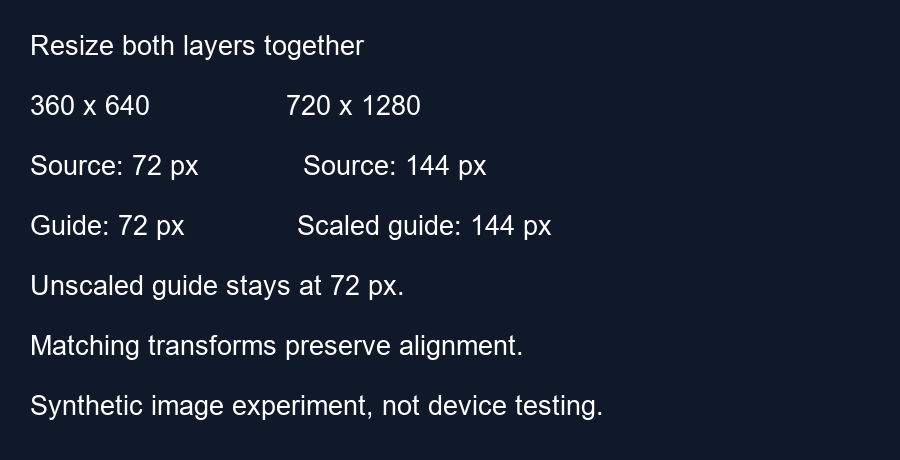
We created a synthetic 360 by 640 source with a vertical landmark at x equals 72 pixels. A separate transparent guide had its left boundary at the same coordinate. We doubled both layers to 720 by 1280 using nearest-neighbor resizing so that no smoothing could blur the measurement. This is a controlled image experiment, not an export from a particular video editor.
In the correctly matched pair, the landmark and the guide boundary both began at x equals 144 pixels. Their horizontal separation was zero pixels. The calculation is 72 times two equals 144 for each layer. Applying the same transform to both layers preserved their alignment.
For the mismatched pair, we doubled the source but kept the old guide at its original dimensions, anchored at the upper-left corner of the larger canvas. The source landmark began at x equals 144 while the guide boundary remained at x equals 72. Their separation was 144 minus 72 equals 72 pixels. A guide that once matched the source now suggested a different boundary solely because its layer was not scaled with the source.
How to reproduce the result
Start with a blank 360 by 640 RGB image and draw a vertical green line from x equals 72 through x equals 75. On a separate transparent RGBA image of the same dimensions, draw a red boundary at x equals 72. Save both PNG files. Resize both to 720 by 1280 using nearest-neighbor sampling and compare the first colored pixel on a row away from the edges. Then compare the resized source with the original guide placed at the upper-left corner. Our script reads those colored-pixel coordinates back from the saved images and asserts the expected separations.
This example deliberately uses a left-edge anchor. If an editor centers the smaller overlay instead, its horizontal offset must be included. At width 720, centering a 360-pixel layer adds 180 pixels to its coordinate: 180 plus 72 equals 252. Compared with the resized source landmark at 144, that is a 108-pixel separation in the other direction. The example is a calculation, not a claim about your editor default.
What this does and does not establish
Matching source and guide dimensions is a useful check, but dimensions alone do not prove alignment. Cropping, position offsets and separate scaling can still shift either layer. Our test held those variables fixed. We measured an artificial landmark and an artificial guide, not YouTube buttons or real subtitles. The tool exports its PNG canvas at the loaded source dimensions; any later editor transform needs another visual review.
A practical editing order
Finish the intended crop and frame size first. Generate or fit the guide to that frame, then inspect both layers at the same scale and position. If you resize later, transform the guide together with the source or replace it with a guide matching the new frame.
Questions and answers
Can I keep the old guide at its original size?
Only if its final placement still matches your intended frame. A smaller layer anchored inside a larger frame changes the reference.
Does scaling the preview PNG fix the transparent guide?
No. They are separate downloaded files. Transform each file you actually use.
Should the guide remain in the published Short?
Hide or remove the editing guide before your final export.
Open the checker · Reusing percentages
Visual walkthrough
Text-led walkthrough without audio.