How much room does the Shorts ad guide leave for captions?
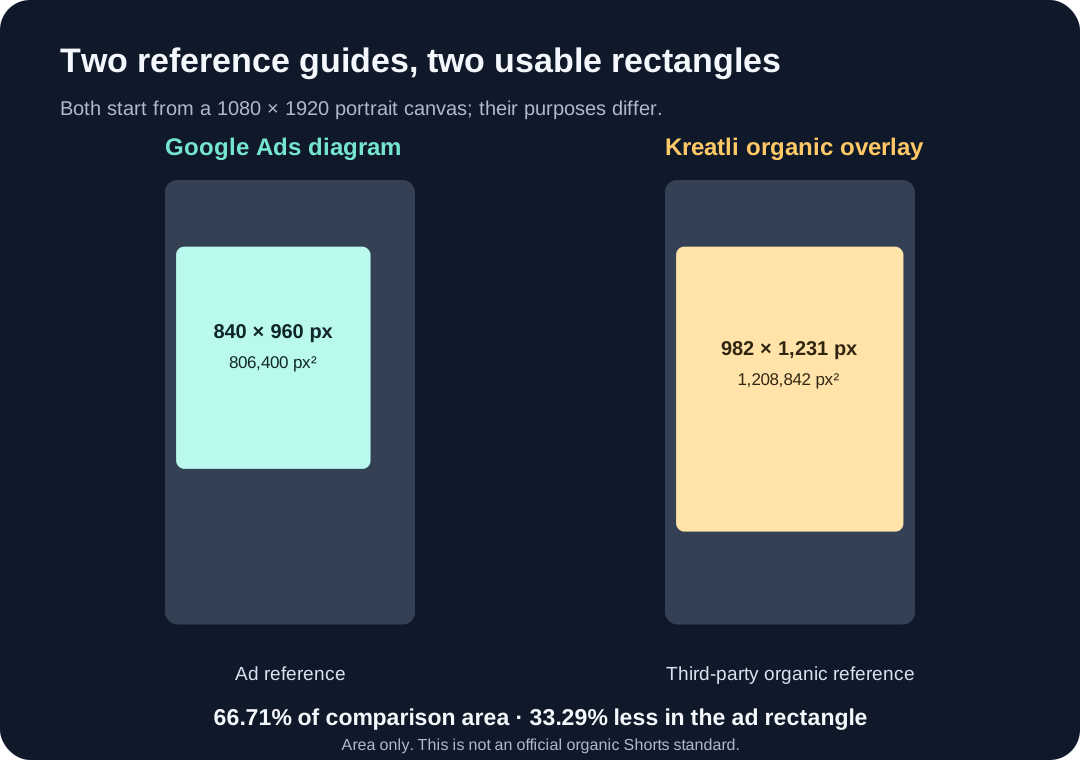
Google’s vertical-video ad diagram leaves an 840 × 960 px rectangle, or 806,400 square pixels, on a 1080 × 1920 canvas. That is 33.29% less area than the 982 × 1,231 px organic overlay listed by a third-party checker. These are different references; Google’s ad guidance is not a universal organic Shorts rule.
What is being compared
Google’s current Ads Help page links a vertical-video diagram labeled 1080 × 1920. Its red safe rectangle is bounded by 288 pixels at the top, 672 at the bottom, 48 at the left and 192 at the right. That leaves 840 × 960 pixels. The same page says ad overlays, calls to action and buttons can move with format, campaign type and screen, so the rectangle is a reference for certain inventory rather than a promise about every playback.
For comparison, Kreatli’s YouTube checker lists an organic Shorts rectangle of 982 × 1,231 pixels. That is a third-party template measurement; Google’s cited page does not call it an official organic safe-zone specification.
Calculate the area difference
Rectangle area is width multiplied by height. The Ads illustration leaves 840 × 960 = 806,400 square pixels. The comparison template leaves 982 × 1,231 = 1,208,842 square pixels. The difference is 1,208,842 − 806,400 = 402,442 square pixels. Relative to the comparison rectangle, the Ads reference leaves (402,442 ÷ 1,208,842) × 100 = 33.29% less area. Its remaining area is (806,400 ÷ 1,208,842) × 100 = 66.71% of that template.
This percentage compares rectangle areas, not the number of captions that will fit. Font size, line breaks, contrast, motion and interface changes all affect actual legibility. It is useful for choosing a conservative layout, not for predicting a viewer’s screen.
What the checker’s default actually means
The current app.js default is 15% top, 35% bottom, 48/1080 of the width at left, and 192/1080 at right. On a 1080 × 1920 source these become 288, 672, 48 and 192 pixels: the same numbers printed in Google’s Ads illustration. The “ads” preset and Reset button restore those values. This is a source-code comparison, not a live YouTube UI test.
For a regular Short, use an organic reference only when its source and measurement are clear, then inspect the actual phone preview. If the same creative may run as an ad, testing the smaller ad rectangle gives the title, logo or product more clearance. The checker lets you adjust the four margins before exporting a PNG. It does not detect buttons in a video or verify every campaign placement.
A practical selection
Pick the playback situation first. For an ad, begin with Google’s ad diagram and leave additional visual breathing room around small text. For an organic upload, treat a published template as a working overlay and check it against a current app preview. If one edit must serve both, start with the tighter rectangle, export a frame, and review it on the intended device. Keep the source video local; the checker draws its overlay in the browser.
The comparison figure below uses proportional rectangles. The larger area is identified as a third-party organic reference, not a Google rule. The calculation can be repeated from the displayed width and height values.
Questions and answers
Is 840 × 960 Google’s safe area for every organic Short?
No. Google presents those margins in guidance for vertical video ads. Its page says interface elements can vary by format, campaign type and screen.
How was the 33.29% figure calculated?
(982 × 1,231 − 840 × 960) ÷ (982 × 1,231) × 100 = 33.29%, rounded to two decimals. The 982 × 1,231 comparison comes from the cited third-party checker page.
Does the checker automatically know whether I am making an ad?
No. Its default and Reset values match the Google Ads diagram, while the margin sliders can be adjusted. It does not inspect your campaign or detect app controls.
Can I rely on this rectangle to keep every title visible?
No. Use it as a guide, then check your exported frame in the relevant playback preview. Device layout and text treatment can change what remains legible.
Open the local frame checker · See how its guide stroke is drawn
Watch the short explanation
Original text-led comparison; no visitor media is used.
Sources: Google Ads Help: safe zones for vertical video ads on YouTube (linked diagram); Kreatli YouTube Shorts safe-zone checker (third-party organic overlay dimensions). Checked 2026-11-06.