How to compare caption positions across phone screenshots
Compare caption positions in relation to the displayed video rectangle, not the phone screenshot edges. For a measured caption point (x, y) and video rectangle (left, top, width, height), calculate x% = (x − left) ÷ width × 100 and y% = (y − top) ÷ height × 100. This makes positions comparable when screenshots have different screen sizes. It does not prove that either phone uses the same player crop or interface layout.
Use the same anchor in both screenshots
Choose one repeatable point on the caption. The worked example uses the center of the caption box. Mark the visible video rectangle in each screenshot, then record its left and top edges, width, and height in screenshot pixels. Measure the caption center in the same coordinate system.
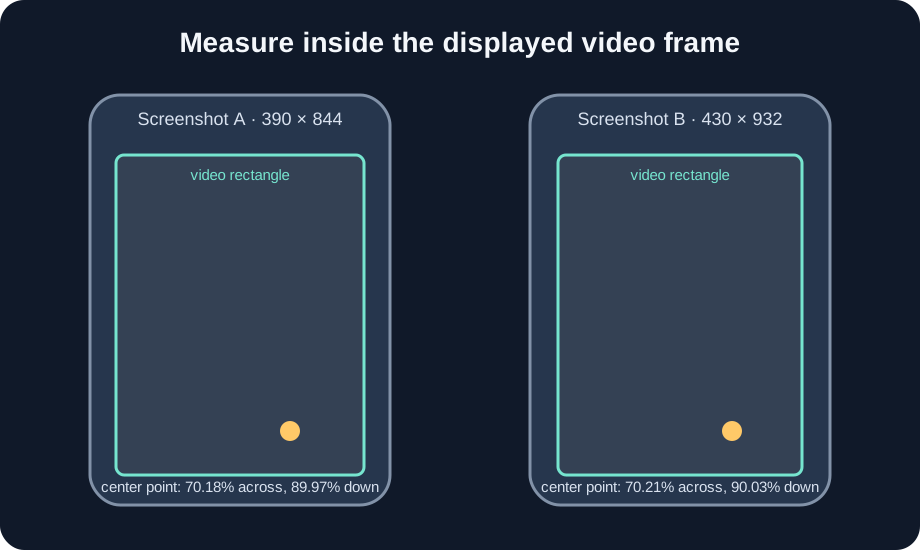
Screenshot A is an illustrative 390 × 844 image. Its displayed-video rectangle starts at (24, 110) and measures 342 × 608 pixels. The chosen caption center is (264, 657). Its normalized horizontal position is (264 − 24) ÷ 342 × 100 = 70.18%. Its vertical position is (657 − 110) ÷ 608 × 100 = 89.97%.
Screenshot B is an illustrative 430 × 932 image. The video rectangle starts at (36, 120) and measures 339 × 602 pixels. The caption center is (274, 662). Its horizontal position is (274 − 36) ÷ 339 × 100 = 70.21%, and its vertical position is (662 − 120) ÷ 602 × 100 = 90.03%.
Subtract A from B: the example differs by 0.03 percentage points horizontally and 0.07 points vertically. The raw caption centers are 10 pixels apart in x and 5 pixels in y. The normalized comparison describes how each point sits within its own video rectangle; it does not say whether the caption is actually readable under the controls.
When the player crop changes
The formulas above compare positions within the visible video rectangle. If the player crops the source differently, a point at 90% of the visible picture may map to a different source-frame row. Record the visible source interval before translating a point back to the source. If the source crop is unknown, compare only the visible-picture coordinates and label the source comparison unavailable.
For a known vertical crop that shows source rows from c to c + h, convert a visible normalized y value v into source position with source_y = c + v × h. Divide by the full source height H to express it as a percentage: source_y% = (c + v × h) ÷ H × 100. Keep c, h, and H with the screenshot measurements so someone can repeat the calculation.
Keep the record honest
These two coordinate sets are chosen examples for checking the arithmetic. They are not measurements from real phones or claims about YouTube’s current interface. A useful device log should include the screenshot, phone model, app version, playback state, the measured video rectangle, the anchor definition, and whether the source is cropped. Compare results only when the content and playback state match.
Questions and answers
Why not compare the caption’s raw screen pixels?
Different screenshot sizes and video placements shift raw coordinates. Normalize each point to the displayed video rectangle first.
What point on the caption should I measure?
Pick a repeatable anchor, such as the center of its bounding box, and use that same anchor in both images.
Does the example prove these phones show the same Shorts interface?
No. The coordinate sets are illustrative arithmetic, not phone measurements or platform UI specifications.
Can I compare source-frame positions if the player crops differently?
Only if you know the visible source crop interval. Otherwise report positions within each visible video rectangle and mark the source-frame comparison unavailable.
Open the local frame checker · Read the square-player crop example
Watch the short explanation
Original coordinate walkthrough. The example uses synthetic measurements and no visitor media.
Community question that motivated this checklist: a creator described finding a caption behind the Shorts like button after checking playback on a phone. This self-report is anecdotal; it does not verify a platform-wide UI position.