Does a screenshot of the preview preserve the PNG export dimensions?
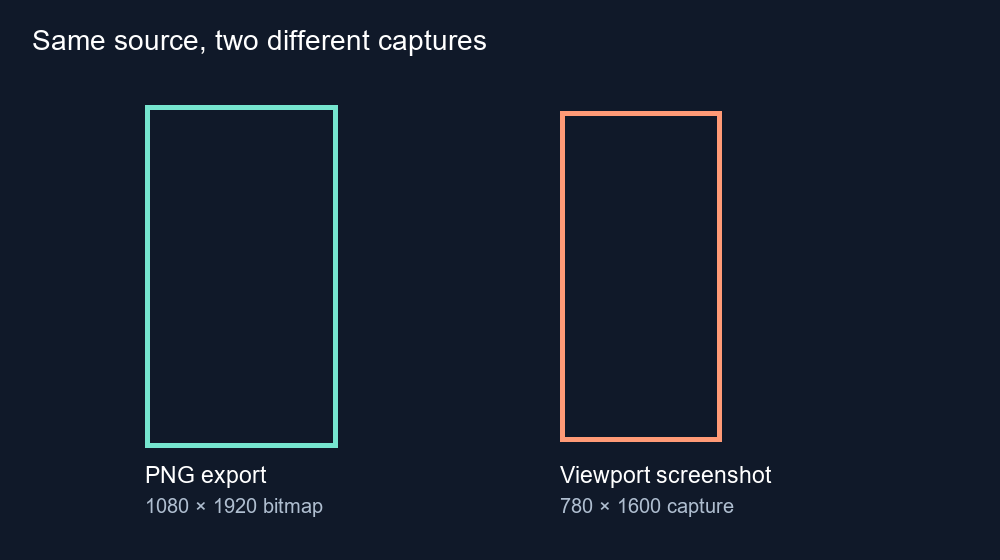
A full-viewport screenshot records the captured screen area at the capture scale. This site exports the canvas bitmap, whose dimensions come from your source file. For the same 1080 × 1920 source, our test produced a 1080 × 1920 export and a 780 × 1600 full-viewport screenshot.
Keep three sizes separate
We loaded a generated 1080 × 1920 source into a Chromium fixture. Its canvas bitmap stayed 1080 × 1920 pixels. CSS displayed the canvas content at 320 CSS pixels wide; with its one-pixel border on each side, the measured element was 322 CSS pixels wide and 570.88 CSS pixels high. The saved viewport screenshot measured 780 × 1600 pixels. This is one headless run; other screenshot applications can produce different dimensions.
In the fixture, toDataURL("image/png") serialized the canvas and its PNG header decoded to 1080 × 1920. The live site’s download handler uses toBlob("image/png"); we verified that code path separately in the deployed JavaScript. Both methods serialize a copy of the canvas bitmap under the HTML standard. The screenshot captures the test page; its saved dimensions follow the capture process.
What the experiment actually compared
We drew a solid field and a thin frame into the source-sized canvas, serialized it as a PNG data URL, decoded its base64 bytes and read the PNG header. We captured the same fixture with Chrome’s screenshot command and read that file’s PNG header with Pillow. The canvas image measured 1080 × 1920; the screenshot measured 780 × 1600. Their pixel counts were 2,073,600 and 1,248,000, calculated as width × height.
For this controlled run, the screenshot contained 825,600 fewer pixels: 2,073,600 − 1,248,000. Pixel-count difference alone says nothing about visual quality. A screenshot could be cropped to the preview, captured at another scale or saved by another tool. Those choices change its bounds. The measured 780 × 1600 applies only to this saved capture.
Why the site export follows the source
The upload path reads the image’s natural width and height, assigns both values to the canvas bitmap, and draws the decoded source across that bitmap. The download path asks the canvas to create a PNG blob. We verified each step in the deployed JavaScript. CSS controls how the canvas appears in the layout; the upload handler sets the bitmap dimensions.
The HTML canvas standard describes width and height attributes as the bitmap dimensions. Its serialization algorithm creates the image file from a copy of that bitmap. MDN’s toBlob() documentation describes the resulting blob as an image representing the canvas. See the HTML canvas serialization steps and MDN toBlob reference.
Use the right output for the next step
Use the site’s downloaded preview PNG when you need the source-sized image with the guide drawn over it. Use the transparent overlay PNG when you need a guide layer for an editor. A browser screenshot records its capture region and output scale. Check the downloaded PNG’s image properties when exact pixel dimensions matter.
The experiment used a generated fixture; no visitor media entered it. We did not assess color fidelity, lossy formats or how other screenshot tools handle an element-only crop.
Questions and answers
Does the CSS display width set the exported PNG width here?
No. The upload handler sets the canvas bitmap from the source image dimensions before the CSS layout displays it smaller.
Can a screenshot have the same dimensions as the export?
Yes, if the capture bounds and scale happen to match. That is a capture setting, not a guarantee from this export flow.
Which file should I inspect for exact dimensions?
Inspect the downloaded preview PNG or overlay PNG in your image viewer. A page screenshot may include browser or page margins.
Open the local frame checker · Choose between preview and overlay PNG
Watch the size comparison
Text-led walkthrough without audio.