How do you hide the safe zone guide before exporting?
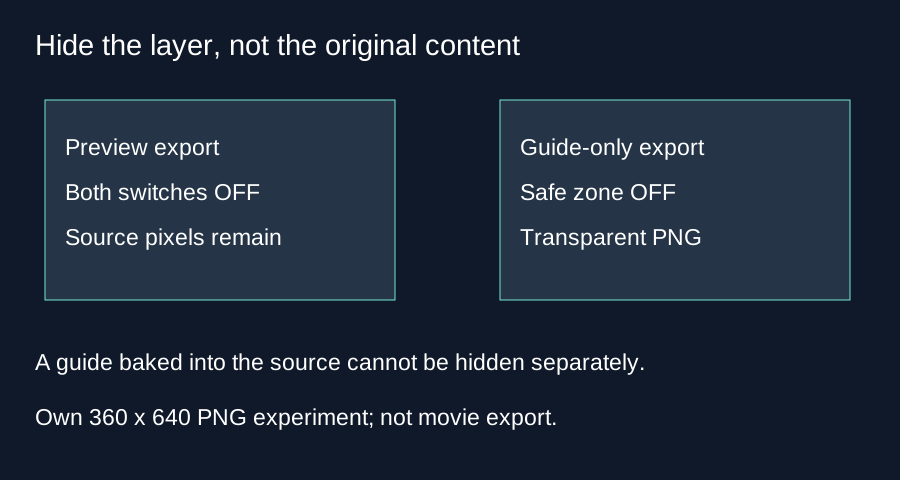
In Short Frame Check, turn off Show safe zone and Show caption reference before downloading a clean preview still. In your video editor, hide or remove the imported guide layer before exporting the final movie. Hiding a layer cannot remove a guide already baked into your source pixels.
Two switches control two different drawings
Our source inspection found that Show safe zone controls the shaded regions and dashed boundary. Show caption reference controls a separate text box. Turning off only the first switch does not turn off the second. The preview export redraws the source and then follows both current switch values. A caption reference can therefore remain in a preview after the safe zone guide disappears.
The guide-only export takes a different path. It creates a fresh canvas with the source dimensions and calls the overlay drawing function with caption drawing disabled. This means the caption checkbox cannot add reference text to that guide-only download. The safe zone checkbox still controls whether the guide is drawn at all. With it off, the fresh canvas has nothing drawn into it.
Our actual hidden-guide download
We selected our own previously generated 360 by 640 PNG in the live tool, switched Show safe zone off, and switched Show caption reference on. We downloaded the overlay PNG. Its decoded dimensions were 360 by 640. We inspected the alpha channel of every pixel: all 230,400 positions had alpha zero. The total follows width times height: 360 times 640 equals 230,400. This was a fully transparent image, even with the caption reference switch on.
That result follows from the two drawing conditions rather than an export failure. The new guide canvas started transparent; the unchecked guide prevented boundary drawing; the guide-only path disabled caption drawing. A file with those dimensions can still look blank when opened. File existence and image dimensions alone do not establish that it contains a visible guide.
Our clean-preview comparison
Next we disabled the caption reference too and downloaded the preview PNG. We compared its decoded RGBA values with the selected source PNG, counting a difference whenever any channel changed at the same coordinate. The difference count was zero. Both files had the same 360 by 640 dimensions. For this sample, disabling both drawings preserved the decoded source pixels in the preview.
Our selected source already contained a visible guide from an earlier experiment. That guide remained in the clean preview because it was part of the source image itself. The switches stopped adding new guide pixels; they did not erase old ones. This is an important distinction when a screenshot or preview PNG is accidentally imported as the final artwork. Use the original media rather than expecting a layer switch to reconstruct covered content.
This experiment covers one PNG in this browser. It does not establish color-preserving export for every image profile, removal of baked-in graphics, or movie export. A clean preview download is still a PNG. To produce a clean video, return to your editor and export the movie with its separate guide track hidden.
Before exporting your movie
- Keep your original media and guide on separate layers in your editor.
- Use the guide while positioning text and logos.
- Hide or remove only the guide layer, then inspect the final preview.
- Check that captions you actually want remain visible.
- Export the movie and review several moments on your phone.
Questions and answers
Why is my overlay PNG blank?
Check whether Show safe zone was off. This tool can export a fully transparent guide-only PNG in that state.
Does hiding the guide hide my real subtitles?
No. It changes this tool's drawings, not text already inside your media.
Can I remove a guide from a flattened preview?
These switches cannot do that. Return to the original image or editor project.
Does the clean preview save a clean MP4?
No. It saves a still PNG; your editor exports the movie.
Open the checker · Compare PNG export types
Visual walkthrough
Text-led walkthrough without audio.