How do you check one video frame before publishing a Short?
Open your video in Short Frame Check, pause the source player at the moment you want to inspect, adjust the guide, and download a preview PNG. The download is one still frame with the guide, not an edited video. Repeat at other important moments before reviewing the final Short on your phone.
Our two-moment export test
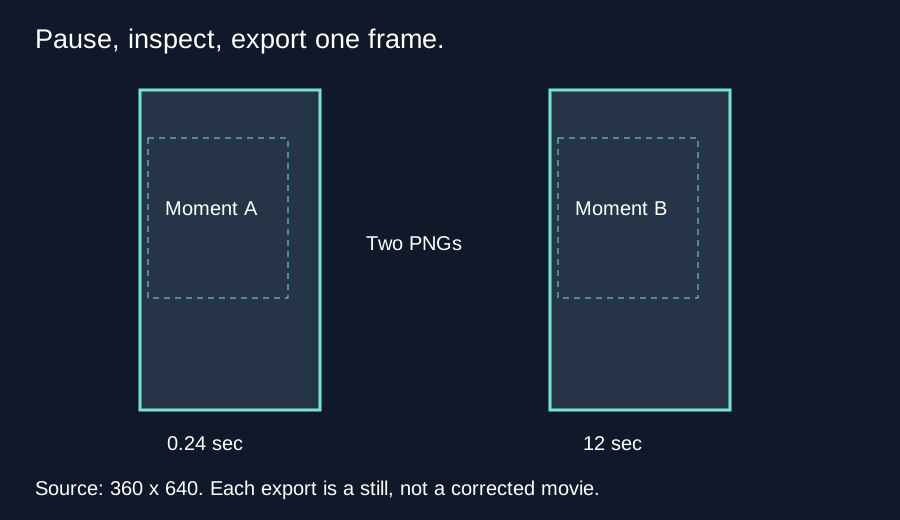
We used an original text-led MP4 made for this website, not a visitor file. The browser reported a source width of 360 pixels, height of 640 pixels and duration of 24 seconds. It opened paused at the beginning. We used the source player keyboard control to advance once, then read a paused time of 0.24 seconds. After another 49 right-arrow presses, the reported paused time was 12 seconds. These readings describe this browser and sample, not a universal keyboard step size.
We clicked Download preview PNG at each of those paused positions. Both downloads decoded as 360 by 640 PNG images. A direct pixel comparison found 44,982 different pixels out of 230,400 positions. We counted a position as different whenever its complete RGBA value differed between the two decoded files. The formula for total positions is width times height: 360 times 640 equals 230,400. This count verifies that these two exports captured different visual content; it is not a quality score or a subtitle-detection accuracy measurement.
What stays fixed when the time changes?
The source dimensions stayed fixed in our test, so the default guide geometry stayed fixed too. Its left edge was 360 times 48 divided by 1080, or 16 pixels. Its right edge was 360 times one minus 192 divided by 1080, or 296 pixels. Its top edge was 640 times 0.15, or 96 pixels. Its bottom edge was 640 times one minus 0.35, or 416 pixels. Changing the selected moment changed the source image underneath those boundaries, not the boundary calculation.
Those are the current tool defaults for our sample. They are not a promise that every organic Shorts interface uses these exact coordinates. If your own source is larger, the pixel coordinates scale with its actual dimensions. A guide that looks acceptable at one time can still overlap a moving logo or a later caption at a different time.
Why the result is a still
We inspected the implementation alongside the downloads. The source video redraws the canvas after a seek completes. While it plays, an animation loop redraws the preview. When Download preview PNG is clicked, the download function draws the current source again and encodes that canvas as image/png. There is no movie-encoding step in this export path. The guide-only button instead draws a separate overlay canvas without the source video.
Pause before exporting so the moment you inspect and the moment you save are easier to match. A click during playback can capture a later moment than the one you were looking at. Our test does not establish frame-perfect seeking, support for every codec, or results on every phone. The two original downloads and the source trace support only the workflow described here.
Repeat with your own edit
- Choose a local MP4 or WebM that your browser can decode.
- Use the source player controls to pause at a caption entrance, a moving subject, or a call to action.
- Adjust the margins and inspect the actual text in the source, not only the optional reference caption.
- Save a preview PNG when you need a still review record. Return to your editor to change the actual video.
- Check later moments separately and review the finished upload on your phone.
Questions and answers
Does this download a corrected MP4?
No. The output is a PNG still. Export the edited movie from your video editor.
Does one passing frame prove the entire video fits?
No. Captions, subjects and interface states can change over time.
Will the caption reference move my real subtitles?
No. It is a separate guide drawing, not a subtitle editor.
What if the file will not play?
Try a compatible browser or re-export a supported codec in your editor. The filename extension alone does not guarantee decoding.
Check a local video · Choose the right PNG export
Quick visual walkthrough
Text-led walkthrough without audio.