PRACTICAL GUIDE · OCTOBER 6, 2026
How to check a caption against a YouTube Shorts safe zone
Check the whole caption box against your chosen margins, not just its center. Use an overlay to find likely conflicts, then review the actual Shorts layout on your phone. A template is a reference, not a universal guarantee.
This guide shows a reproducible calculation using Short Frame Check’s own caption reference. It does not claim to automatically inspect embedded subtitles.
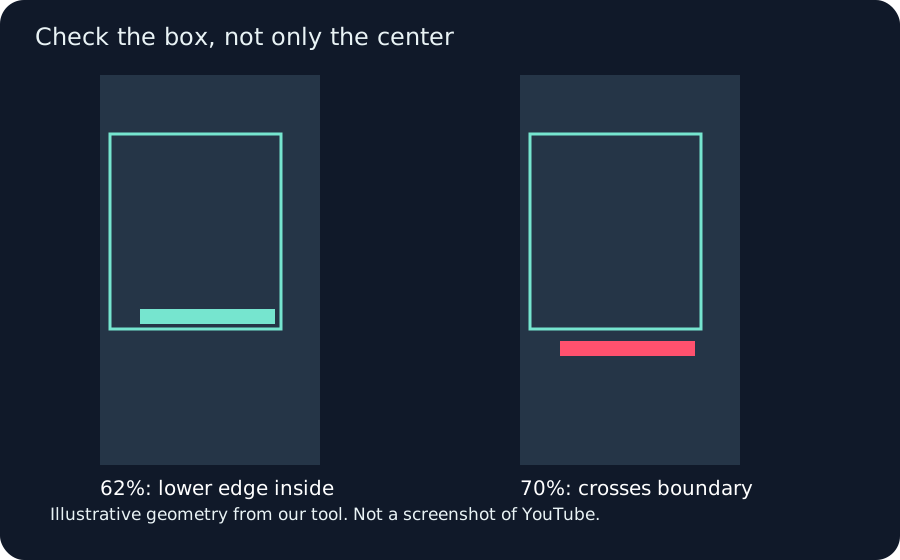
A reproducible caption test
Start with a 540 by 960 image in our browser tool. The default preset uses a top margin of 15%, a bottom margin of 35%, a left margin derived from 48/1080, and a right margin derived from 192/1080. These are this tool’s settings, not a promise about every Shorts screen.
The guide’s vertical boundaries are 960 × 0.15 = 144 pixels and 960 × (1 − 0.35) = 624 pixels. Its horizontal boundaries are 540 × (48/1080) = 24 pixels and 540 × (1 − 192/1080) = 444 pixels. A caption must fit as a rectangle, rather than only placing its center inside those coordinates.
Our caption reference uses a base text size of 540 × 0.042 = 22.68 pixels and a box height of 22.68 × 1.65 = 37.422 pixels. At a vertical position of 62%, the box center is 595.2 pixels. Its lower edge is 595.2 + 37.422/2 = 613.911 pixels, which is inside the guide’s lower boundary. At 70%, the center is 672 pixels and the lower edge is 690.711 pixels, which crosses that boundary. This is a calculation from our drawing code, not a measurement of YouTube’s interface.
Horizontal fit is a separate check. Long words can produce a wider caption box even when the vertical position is unchanged. The tool compares the box’s left and right edges with the guide too. Its displayed overlap message applies only to the caption reference that you typed. It does not read subtitles already embedded in your image or video.
Repeat the check on your own source
- Open the tool and choose a local image or video. Confirm the displayed source dimensions.
- Turn on Show caption reference and type a short sample caption. Move Caption position while watching the status message.
- Change one margin at a time. Keep a note of the chosen values so a later edit uses the same guide.
- Download a preview PNG for review, or a transparent overlay PNG for your editing timeline. The video option saves one frame, not an edited movie.
- Review the actual published layout on your phone. A guide that fits in this tool is not a guarantee that every viewing state fits.
Our local image smoke test loaded a 540 by 960 PNG, produced a 540 by 960 preview canvas and created a downloadable PNG. The calculations above explain the caption boundary logic; they are not a claim that a real caption was automatically detected or moved.
Questions answered
Does a green guide mean my subtitles are safe?
No. It only shows the region defined by the current margins. Check your actual subtitle lines and the final phone view.
Can I move subtitles with this tool?
No. Edit them in your video editor. Our caption reference is an optional example drawn over the preview.
Does the video export include the full clip?
No. The export is a PNG of the current frame.
Watch the illustrated example
A captioned explanation with no audio. Illustrative geometry from our tool, not a recording of YouTube.
Reference and method
General advertising context: Google’s video ad specifications. The numerical example is derived from our own tool implementation. Organic Shorts can have different interface states.